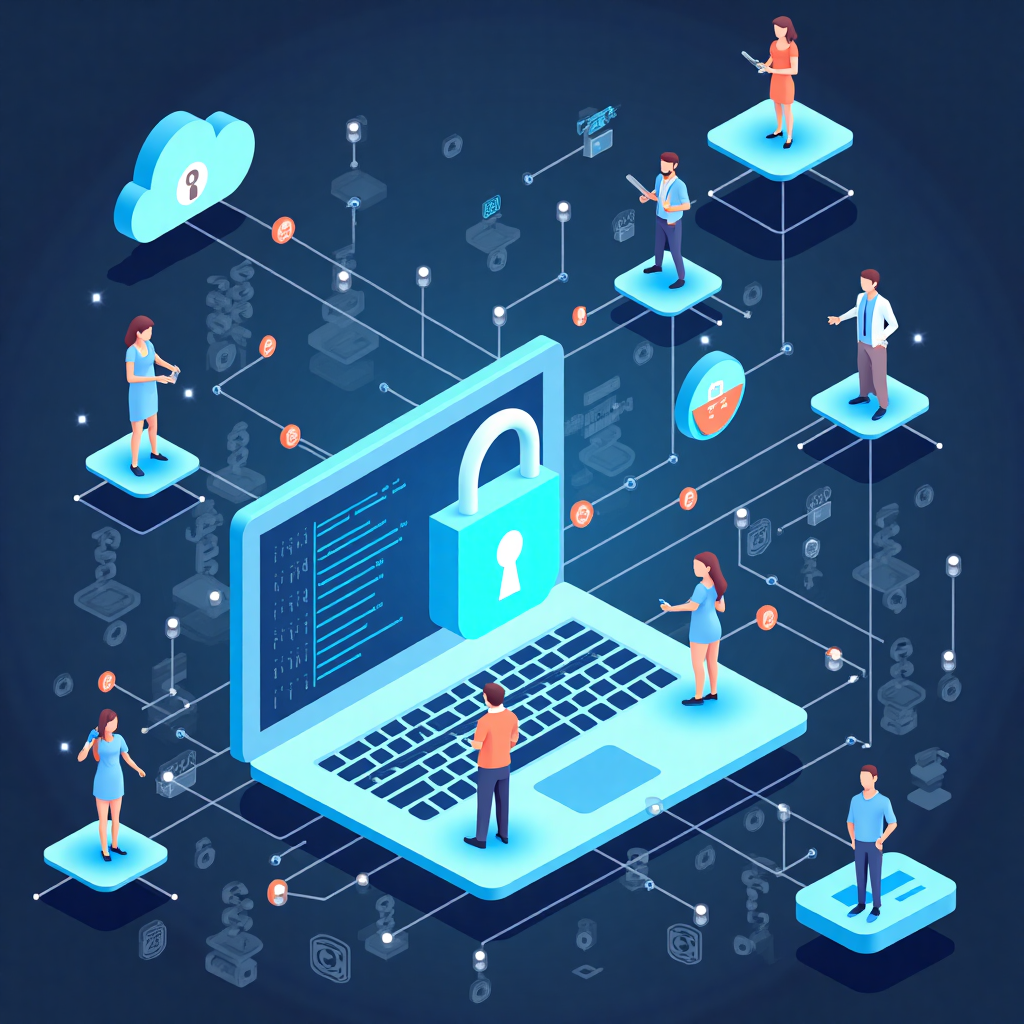
In today’s digital age, your home internet connection is more than just a gateway to entertainment and communication—it is the front door to your personal and financial life. Every device connected to your home network, from laptops and smartphones to smart TVs and thermostats, represents a potential entry point for cybercriminals. The unfortunate reality is that most home internet users do not realize how vulnerable they are until it is too late. Hackers no longer focus solely on large corporations; they actively target home networks because they are often the weakest link in the security chain. The good news is that by implementing a few practical cybersecurity habits, you can dramatically reduce your risk and protect your family’s digital footprint. This guide will walk you through the essential steps every home internet user should take to build a strong defense against online threats.
Many people assume that cybersecurity is a complicated technical field reserved for IT professionals. However, the most effective protections for home users are surprisingly straightforward. They involve understanding how your network operates, recognizing common attack methods, and adopting consistent security practices. Whether you work from home, stream content daily, or simply browse social media, your online behavior creates risks that can be managed with the right knowledge. In the following sections, we will explore everything from securing your Wi-Fi router to identifying phishing attempts, securing smart devices, and creating a family-wide culture of cyber awareness. By the end of this article, you will have a clear, actionable plan to secure your home internet connection against the most common and dangerous threats.
It is important to remember that cybersecurity is not a one-time project but an ongoing process. Cybercriminals continuously evolve their tactics, and new vulnerabilities are discovered regularly. Therefore, staying safe online requires regular maintenance, updates, and a healthy dose of skepticism. The tips provided here are designed to be practical and accessible, regardless of your technical background. You do not need to be a computer expert to protect your home network; you just need to be consistent and proactive. Let’s dive into the core principles of home internet security and learn how to lock down your digital life.
Secure Your Home Wi-Fi Network
Your Wi-Fi router is the heart of your home internet connection. If it is not properly secured, everything else you do to protect your devices can be undermined. A compromised router can allow attackers to intercept your traffic, redirect you to malicious websites, or even use your network for illegal activities. The first step to securing your home network is to change the default administrator credentials on your router. Most routers ship with a default username and password, such as “admin” and “password,” which are publicly known and easily guessed. Log in to your router’s settings page and change both the username and password to something strong and unique. This single action blocks a huge percentage of automated attacks.
Next, ensure your Wi-Fi encryption is set to the highest available standard. Look for WPA3 (Wi-Fi Protected Access 3) in your router settings. If WPA3 is not available, use WPA2-PSK (AES). Avoid older protocols like WEP or WPA, as they are outdated and can be cracked in minutes by even novice hackers. Your Wi-Fi password should be long and complex—aim for at least 16 characters, mixing upper and lowercase letters, numbers, and symbols. Avoid using personal information, dictionary words, or common phrases. A passphrase made of random words, such as “PurpleFrog$7Trampoline!Blue,” is both strong and easier to remember than a string of random characters.
Rename Your Network and Disable WPS
Your router’s default network name, or SSID, often reveals the brand and model of your device, which helps hackers identify known vulnerabilities. Change the SSID to something generic that does not identify you or your address. Avoid using your family name, street address, or any personal details in the network name. While this may seem like a minor step, it removes an easy piece of information that attackers can use for social engineering or targeted attacks. Additionally, disable Wi-Fi Protected Setup (WPS). Although WPS was designed to make connecting devices easier, it has a well-documented security flaw that allows attackers to brute-force the PIN and gain access to your network. Turning it off closes a common backdoor.
Create a Guest Network
If you frequently have visitors who need internet access, set up a separate guest network on your router. This network should be isolated from your main network, meaning guests can access the internet but cannot see your computers, printers, or other connected devices. This is especially important if you have smart home devices, which often have weaker security. By placing guests on a separate network, you prevent them from accidentally or intentionally compromising your primary devices. Most modern routers support guest networks, and it takes only a few minutes to configure. Use a different password for the guest network and change it periodically, especially after hosting large gatherings or service workers.
Strengthen Your Passwords and Authentication
Weak passwords remain one of the most common causes of security breaches. Cybercriminals use automated tools that can guess millions of passwords per second, and they rely on lists of commonly used passwords leaked from previous data breaches. To protect your accounts, every online account you use should have a unique, strong password. Reusing passwords across multiple sites is extremely risky because if one account is compromised, attackers can use that same password to access your email, banking, and social media. The best way to manage this is to use a password manager. These tools generate and store complex, unique passwords for each of your accounts, so you only need to remember one master password.
Enable Two-Factor Authentication
Two-factor authentication (2FA), also known as multi-factor authentication (MFA), adds an extra layer of security beyond your password. With 2FA enabled, even if someone steals your password, they cannot access your account without a second factor, such as a code sent to your phone, a biometric scan, or a hardware security key. You should enable 2FA on every account that offers it, especially email, banking, social media, and cloud storage. Authenticator apps are generally more secure than SMS-based codes because text messages can be intercepted through SIM swapping attacks. Where possible, use an authenticator app like Google Authenticator or Authy, or a physical security key for the highest level of protection.
Use Passphrases Instead of Simple Passwords
When you do need to create a password manually, such as for your router or master password for a password manager, consider using a passphrase. A passphrase is a sequence of random words or a sentence that is long but memorable. For example, “CorrectHorseBatteryStaple” is much stronger than “P@ssw0rd!” because its length makes it resistant to brute-force attacks. Aim for at least 16 characters, and avoid using quotes, song lyrics, or common phrases that can be found in dictionaries. The longer and more random your passphrase, the harder it is for automated tools to crack. Remember to never share your passwords with anyone, and be cautious of phishing attempts that try to trick you into revealing them.
Keep Your Devices and Software Updated
Software updates are not just about adding new features—they are critical security patches that fix known vulnerabilities. Cybercriminals actively exploit unpatched software to gain access to devices, and many successful attacks use vulnerabilities that were patched months or even years earlier. This is why it is essential to enable automatic updates on all your devices, including your operating system, web browser, antivirus software, and applications. For computers and smartphones, set updates to install automatically whenever possible. For your router, check the manufacturer’s website regularly for firmware updates, as routers often do not update automatically. Applying these updates closes security holes before attackers can exploit them.
Update Your Router Firmware
Your router’s firmware is its built-in operating system, and like any software, it can contain security flaws. Many people never update their router firmware after purchase, leaving them exposed to known exploits. Log in to your router’s administration panel and check for firmware updates at least once a month, or enable automatic updates if the option is available. If your router is more than five years old and no longer receives firmware updates from the manufacturer, consider replacing it with a newer model that supports the latest security standards. An outdated router is a significant security risk, no matter how carefully you protect your other devices.
Keep All Connected Devices Updated
Beyond computers and phones, many homes now have a wide range of internet-connected devices, including smart TVs, streaming sticks, gaming consoles, smart speakers, thermostats, and security cameras. Each of these devices runs software that can have vulnerabilities. Make a habit of checking for updates on all connected devices, or enable automatic updates where available. Pay special attention to devices from smaller manufacturers, as they may have slower update cycles or may discontinue support entirely. If a device no longer receives security updates, consider disconnecting it from your network or replacing it with a more secure alternative. Remember, your network is only as strong as its weakest device.
Protect Yourself from Phishing and Social Engineering
Phishing is a type of cyber attack where criminals impersonate legitimate organizations or individuals to trick you into revealing sensitive information, such as passwords, credit card numbers, or social security numbers. These attacks often come through email, text messages, or phone calls, and they frequently create a sense of urgency to pressure you into acting without thinking. For example, you might receive an email claiming your bank account has been suspended and asking you to click a link to verify your identity. The link leads to a fake website designed to steal your login credentials. The best defense against phishing is to be skeptical of any unsolicited message that asks for personal information or urges you to click a link or download an attachment.
Recognize Common Phishing Red Flags
There are several common signs that an email or text message may be a phishing attempt. Look for generic greetings like “Dear Customer” instead of your name, spelling and grammar errors, and email addresses that are slightly misspelled or from unusual domains. Hover over links to see the actual URL before clicking, and be wary of shortened URLs that hide the destination. Legitimate companies will never ask you to provide your password, social security number, or full credit card number via email or text. If you receive a message that seems suspicious, do not click any links or attachments. Instead, contact the company directly using a phone number or website you know is legitimate, not the contact information provided in the suspicious message.
Be Careful with Attachments and Downloads
Email attachments are a common vector for malware, including ransomware, which can encrypt your files and demand payment. Never open an attachment from an unknown sender, and be cautious even with attachments from people you know, as their accounts may have been compromised. If you were not expecting an attachment, verify with the sender through another channel before opening it. Be especially wary of file types that can execute code, such as .exe, .scr, .js, and macro-enabled documents like .docm and .xlsm. When downloading software, always go directly to the official website or app store rather than clicking on pop-up ads or links in emails. Free software from untrusted sources often comes bundled with malware.
Secure Your Smart Home Devices
The rise of the Internet of Things (IoT) has brought incredible convenience, but it has also introduced new security risks. Smart home devices, from voice assistants to smart locks, often have weak default security settings and limited processing power for robust security features. Many users plug them in and never change the default passwords, leaving them vulnerable to being hijacked by botnets or used as entry points into the home network. To secure your smart home devices, start by changing the default passwords on every device you install. Use a unique, strong password for each device, and avoid reusing passwords across devices. If the device allows you to disable features you do not use, such as remote access via the cloud, consider turning them off to reduce the attack surface.
Isolate Smart Devices on a Separate Network
One of the most effective ways to protect your main devices from vulnerable smart home gadgets is to place all IoT devices on a separate network. Many modern routers allow you to create a dedicated network for smart devices, isolating them from your computers and phones. This way, even if a smart device is compromised, the attacker cannot easily move laterally to your more sensitive devices. If your router does not support multiple networks, consider using a separate access point or a VLAN-capable router. At the very least, use the guest network feature for smart devices if it isolates them from your primary network.
Review Device Permissions and Privacy Settings
Smart devices often collect more data than necessary and may have default privacy settings that are overly permissive. Take the time to review the settings on each device and disable any data collection or sharing features you do not need. For example, if your smart speaker has a microphone mute button, use it when you are not actively using the device. For smart cameras, ensure you have changed the default login credentials and enabled any available encryption. Regularly check for firmware updates for all smart devices, as manufacturers often release security patches. If a device manufacturer stops providing updates, consider replacing the device, as it will become increasingly vulnerable over time.
Back Up Your Data Regularly
No matter how careful you are, there is always a chance that something goes wrong. Whether it is a ransomware attack, a hardware failure, or accidental deletion, losing your important files can be devastating. Regular backups are your safety net. The 3-2-1 backup rule is a widely recommended strategy: keep at least three copies of your data, store them on two different types of media, and keep one copy offsite. For home users, this might mean keeping your original files on your computer, a backup on an external hard drive, and another backup in the cloud. Cloud backup services like Backblaze, iCloud, Google Drive, or OneDrive offer convenient automated backups that protect against physical disasters like fire or theft.
Automate Your Backups
The most common reason people fail to back up is that they forget. Automating your backups ensures that your data is protected without requiring you to remember to do it manually. Set up automatic cloud backups for your most important files, and schedule regular backups to an external hard drive if you prefer a local copy. Test your backups periodically by restoring a few files to ensure they work correctly. A backup that you cannot restore is useless. Also, be aware that if you use a cloud storage service that syncs automatically, deleting a file locally may also delete it from the cloud. For true backup protection, use a dedicated backup service that retains previous versions of files, so you can recover from ransomware or accidental changes.
Use a Virtual Private Network (VPN) for Additional Privacy
A Virtual Private Network (VPN) encrypts your internet traffic and routes it through a remote server, hiding your online activity from your internet service provider and anyone else on your network. While a VPN is not a complete security solution, it adds an important layer of privacy, especially when using public Wi-Fi networks. For home users, a VPN can prevent your ISP from tracking your browsing history and can help protect your data from eavesdropping. When choosing a VPN, look for a reputable provider that does not keep logs of your activity, offers strong encryption, and has a clear privacy policy. Be cautious of free VPN services, as they may sell your data or contain malware.
When to Use a VPN at Home
Using a VPN at home can be beneficial in several scenarios. If you work from home and handle sensitive company data, a VPN may be required by your employer to ensure secure connections. If you are concerned about your internet service provider collecting and selling your browsing data, a VPN can provide anonymity. It is also useful for accessing geo-restricted content, though this may violate terms of service. However, a VPN does not protect you from phishing, malware, or weak passwords. It should be used in conjunction with other security measures, not as a replacement for them. For most home users, enabling a VPN on your router can protect all devices on your network with a single setup, but this may slow down your connection. Weigh the trade-offs and choose a VPN that fits your needs.
Educate Your Family and Practice Good Cyber Hygiene
Cybersecurity is a team effort, especially in a household with multiple users. Children, teenagers, and even less tech-savvy adults can inadvertently introduce risks by clicking malicious links, downloading unsafe apps, or sharing too much information online. Have open conversations with your family about online safety, and establish clear rules for internet use. Teach them how to recognize phishing attempts, why they should never share passwords, and the importance of reporting anything suspicious. Consider setting up parental controls on devices used by children, and use content filtering to block inappropriate or dangerous websites. A family that understands the basics of cyber hygiene is much harder to attack.
Limit Account Privileges
On shared home computers, create separate user accounts for each family member, and avoid giving everyone administrative privileges. Standard user accounts can perform everyday tasks but cannot install software or change system settings without a password. This limits the damage that can be done if an account is compromised or if a child accidentally installs malicious software. If you have a guest using your computer, create a temporary guest account and delete it afterward. Similarly, on your router, do not share the administrator password with everyone. Keep the admin password private and use a separate Wi-Fi password for general access. Limiting privileges is a simple but effective way to contain potential security incidents.
Stay Informed About Current Threats
Cyber threats are constantly evolving, and staying informed is one of the best ways to protect yourself. Follow reputable cybersecurity news sources, such as the Cybersecurity and Infrastructure Security Agency (CISA) alerts, security blogs, or major tech news outlets. Pay attention to reports of new phishing campaigns, data breaches, or vulnerabilities affecting devices you own. When a major vulnerability is announced, check whether your devices are affected and apply any recommended updates or mitigations immediately. Being proactive about your security awareness will help you recognize and avoid new threats as they emerge. Remember, the most sophisticated security tools cannot protect you if you do not use them correctly and stay alert.
Conclusion
Securing your home internet connection does not require advanced technical skills or expensive equipment. It requires a combination of awareness, consistent habits, and the willingness to take a few simple steps that dramatically reduce your risk. By securing your Wi-Fi router, using strong and unique passwords with two-factor authentication, keeping your devices updated, recognizing phishing attempts, isolating smart home devices, backing up your data, and educating your family, you can build a robust defense against the most common cyber threats. Each of these measures addresses a different layer of vulnerability, and together they create a comprehensive security posture that makes you a much harder target for cybercriminals.
Remember that cybersecurity is not a one-time task but an ongoing commitment. Cybercriminals are constantly developing new techniques, and new devices are constantly joining your network. Schedule regular check-ins to review your security settings, update your passwords, and ensure your backups are working. Make cybersecurity a natural part of your digital routine, just like locking your doors at night or wearing a seatbelt in the car. The peace of mind that comes from knowing your personal information, financial data, and family’s privacy are protected is well worth the effort.
In the end, the goal is not to become paranoid about every click or email, but to develop a healthy sense of caution and a solid foundation of security practices. The internet is an incredible resource, and with the right precautions, you can enjoy its benefits without falling victim to its dangers. Start with the basics—secure your router, update your passwords, enable two-factor authentication—and build from there. Your future self will thank you for taking the time to protect what matters most.